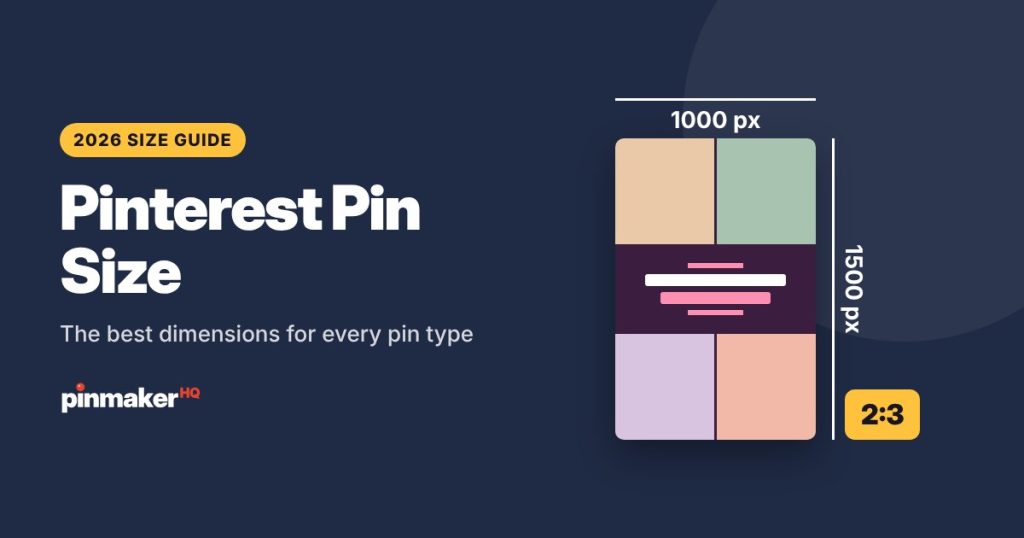
Quick answer: To post on Pinterest on a computer, click Create (or Create Pin), upload your image or video, add a title, description and link, choose a board, then click Publish. In the app, tap the + button, tap Pin, choose your photo or video, tap Continue, fill in the details and tap Create. Use a 2:3 image (1000 × 1500 pixels) and put your main keyword at the start of the title.
Posting a pin only takes a minute, but a few details decide whether anyone ever sees it. This guide shows you exactly how to post on desktop and in the app, what to write in each field, how to schedule pins ahead, and the mistakes to avoid.
Key takeaways
- On desktop: Create → upload → fill in details → Publish. In the app: + → Pin → choose a photo → Continue → Create.
- Every pin should have a title, description, link and a focused board. Empty fields mean Pinterest has less to rank.
- Use a tall 2:3 image (1000 × 1500 pixels) with a short, bold headline on it.
- Business accounts can schedule pins up to 30 days ahead.
- Fresh images do better than re-saving the same pin. Make several designs for each post.
Before you post: what you need
| Item | Best practice |
|---|---|
| Account | A free business account gives you analytics and scheduling |
| Image | 1000 × 1500 pixels (2:3). JPG or PNG work best. Max 20 MB on desktop |
| Video | MP4 or MOV, 4 seconds to 5 minutes. Vertical (9:16 or 2:3) fills the screen best |
| Title | Up to 100 characters. Main keyword first |
| Description | Up to 800 characters. Two to four natural sentences |
| Link | The exact page the pin is about, not your homepage |
| Board | A board whose name matches the pin’s topic |
Don’t have a pin image yet? The free pin maker makes a ready-to-post 1000 × 1500 pin from your photos in about 30 seconds. To start from a blog post, paste the link into blog post to pin. For sizes for every pin type, see the Pinterest pin size guide.
How to post on Pinterest on a computer
- Log in to Pinterest in your browser.
- Click Create at the top left. On some business accounts, open the menu and choose Create Pin.
- Upload your image or video. Click the upload arrow or drag the file in. You can add up to 10 files at once, and each becomes its own pin.
- Add a title. Put your main keyword in the first few words.
- Write a description. Say what the pin is about and what people will find when they click.
- Paste your link. Use the full address of the exact page.
- Choose a board from the drop-down, or create a new one.
- Tag related topics (optional). You can pick up to 10 topics that match your pin.
- Add alt text under More options if you see it. Describe what’s in the image.
- Click Publish to post now, or choose a date and time to schedule it.
Tip: you can edit the image before publishing with the pencil icon, but it’s easier to get the design right first in a pin maker.
How to post on Pinterest from the app (iPhone and Android)
- Open the Pinterest app and tap the + button at the bottom of the screen.
- Tap Pin.
- Choose a photo or video from your phone, or tap the camera icon to take one. If you pick several photos, you can post them as separate pins.
- Tap Continue (or Next).
- Edit the image if you like, adding text or effects, then tap Next.
- Fill in the title, description and link.
- Choose a board.
- Tag products or topics if you want (some options are only on the app).
- Tap Create to publish, or choose to publish later if your account allows it.
What to write in each field
Title
Lead with the words people search for and make it read like a headline.
| Weak | Strong |
|---|---|
| “My new recipe!” | “Easy Vegan Chickpea Curry in 30 Minutes” |
| “Bedroom update” | “Boho Bedroom Ideas on a Budget: 18 Cozy Rooms” |
| “So pretty 😍” | “Fall Nail Designs: 25 Simple Ideas to Try” |
Stuck? The pin title generator writes 10 options from your topic.
Description
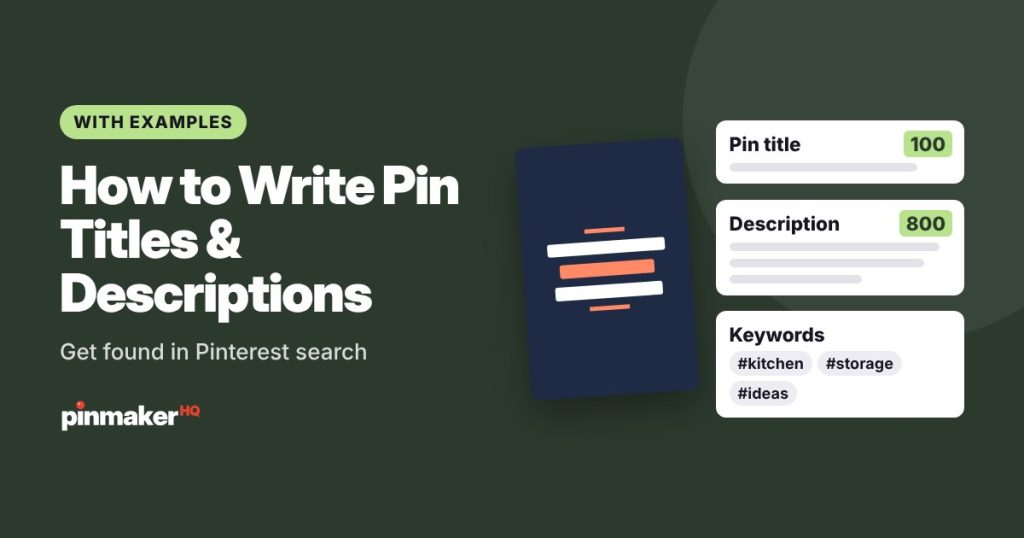
Two to four sentences. Start with the main keyword, add a couple of related phrases, and end with a nudge like “Get the recipe” or “See all 18 rooms”. The description generator can draft it, and our guide to writing pin titles and descriptions has formulas and examples.
Link
Always link to the exact post or product. A pin about curry that opens your homepage loses most of its clicks. Before you post, run the page through our Open Graph checker to make sure its title and image show correctly when Pinterest reads it.
Board
Save the pin to the most relevant board first. Pinterest uses the board to understand what the pin is about. Need better board names? Try the board name generator.
Alt text
Describe what’s in the image for people using screen readers, like “A bowl of chickpea curry with rice and fresh cilantro on a wooden table.” The alt text generator can write it for you.
Check it before you publish
Paste your title, description and alt text into the Pinterest SEO checker. It scores the pin out of 100 and lists what to fix.
How to schedule pins
Business accounts can schedule pins straight from Pinterest, up to 30 days ahead.
- Create the pin as normal on desktop.
- Instead of Publish, choose Publish at a later date.
- Pick the date and time, then click Schedule.
Scheduled pins appear in your profile under your scheduled pins, where you can edit or delete them before they go live.
What time should you post? Less than you’d think. Pinterest shows pins based on relevance, not just how new they are, so a pin can be found for months. Evenings and weekends are often busy, but the best time is when your own audience is active. Check Analytics → Audience insights in your business account. Posting steadily matters far more than the exact hour.
How to post a pin from a website
Most websites let you save their images to Pinterest.
- Pinterest browser button: install Pinterest’s browser extension, then click its button on any page to save an image as a pin.
- Save buttons on the site: many blogs show a Pinterest “Save” button when you hover over an image.
- Paste a link: when creating a pin on desktop, you can save from a website by pasting its address, then pick an image.
If the image on a website is small or wide, the pin may look weak in the feed. Making a proper 2:3 pin with the blog post to pin tool usually gets better results.
How to post a video pin
Video pins follow the same steps. A few extra tips:
- Use vertical video, 9:16 or 2:3, so it fills the screen.
- Keep it short. 6–15 seconds works well for most ideas.
- Hook in the first 2 seconds. Show the result first, then how you got there.
- Add text on screen. Many people watch without sound.
- Choose a strong cover image. It’s what people see before the video plays.
How often should you post?
Consistency beats volume. New accounts do well with 3–5 fresh pins a week, and active bloggers with 1–3 a day. Read how many pins to post per day for a 4-week plan. If you have many posts, the bulk pin maker creates pins for 10 at once.
Common posting mistakes
- No title or description. Pinterest has nothing to rank.
- Linking to the homepage. Link to the exact page.
- Square or wide images. They look small in a feed of tall pins.
- Tiny text on the image. Most people see pins on a phone. Use big, bold words.
- Posting 30 pins at once, then nothing. Spread them out.
- Saving every pin to one general board. Use focused boards.
- Re-saving the same image again and again. Make fresh designs instead. See 15 pin design ideas.
Troubleshooting
| Problem | Likely fix |
|---|---|
| Upload fails | Check the file type (JPG, PNG or MP4) and size. Large images can be shrunk with the image compressor |
| Image looks cropped | Use a 2:3 image. The image resizer converts any photo to 1000 × 1500 without stretching |
| Link not accepted | Use the full address starting with https://, not a shortened link |
| Pin gets no views | Give it time, and improve the title and keywords with the Pinterest SEO checker |
| Can’t find schedule option | Scheduling needs a business account and is easiest on desktop |
Frequently asked questions
How do I post on Pinterest?
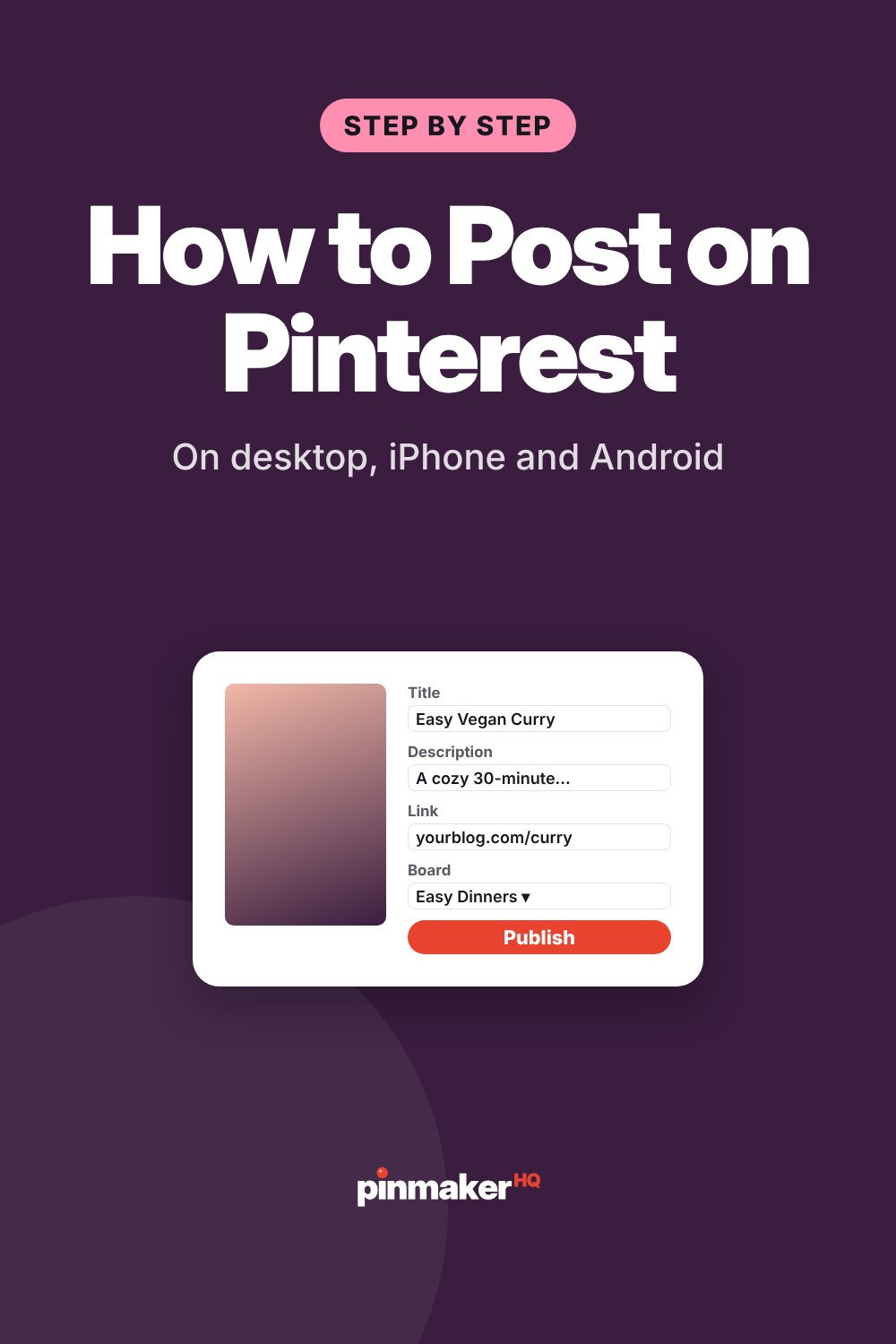
On a computer, click Create, upload an image or video, add a title, description and link, choose a board and click Publish. In the app, tap +, tap Pin, choose your photo, tap Continue, fill in the details and tap Create.
What size should a Pinterest post be?
1000 × 1500 pixels, a 2:3 ratio. It fills the most space in the feed without being cut off.
Can I post on Pinterest without a link?
Yes, the link is optional. But if you want visitors on your website or shop, always add the link to the exact page.
Can you schedule pins on Pinterest?
Yes. Business accounts can schedule pins up to 30 days ahead when creating a pin on desktop.
How many pins can I upload at once?
On desktop you can upload up to 10 images or videos at once, and each one becomes its own pin.
Why is my pin not showing up?
New pins can take a while to appear in search. Make sure it has a clear, keyword-led title and description, sits on a relevant board, and links to a matching page. Then keep posting fresh pins.
Make your next pin
Turn your photos into a ready-to-post pin with the free pin maker, or paste a blog link into blog post to pin. Then follow the steps above to post it. For more on getting found, read our Pinterest SEO guide. Cleaning up old boards first? See how to delete a board or pin on Pinterest.