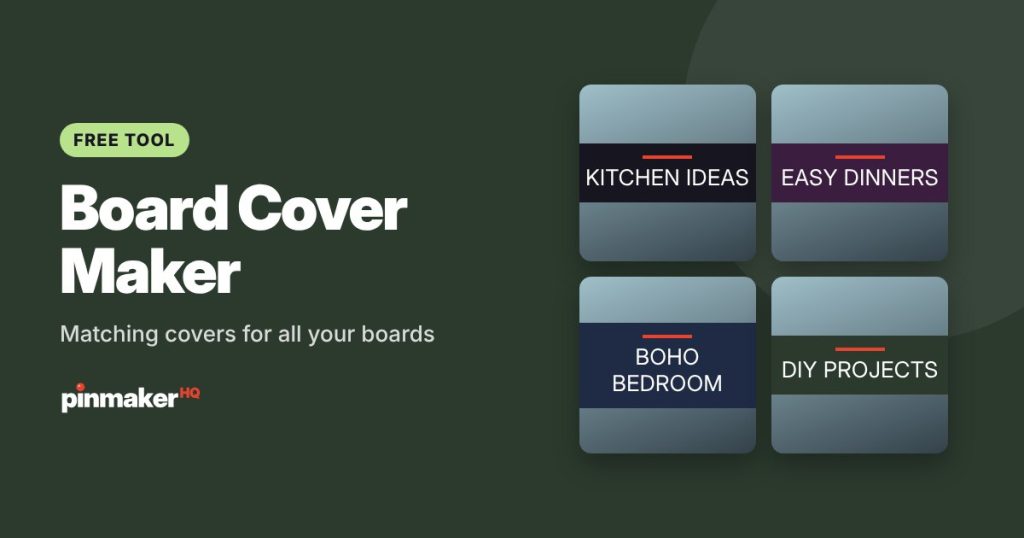
Make a matching set of Pinterest board covers in one go. Type your board names, pick a style, colors and font, and download a cover for every board. A tidy profile tells new visitors what you’re about at a glance.
How to make board covers
- Type your board names, one per line. You’ll see a cover for each one right away.
- Pick a style: Band, Solid, Frame or Minimal.
- Choose a font, a background color and an accent color. Text switches between white and dark automatically so it stays readable.
- Add a background photo if you’d like, for the Band or Frame style.
- Add your website or name to brand every cover.
- Download one cover at a time, or click Download all covers.
The four styles
| Style | Looks like | Best for |
|---|---|---|
| Band | A bold title band across the middle | Busy profiles where covers need to pop |
| Solid | A big title on a flat color | Clean, minimal brands |
| Frame | A white card over your color or photo | Lifestyle, wedding and home boards |
| Minimal | A title with a small accent line | Text-led brands, coaches and writers |
How to set a board cover on Pinterest
Pinterest builds a board’s cover from pins already saved to it, so the cover image needs to be a pin on that board first.
- Save the cover image as a pin to the board it belongs to. Link it to your website or the matching category page.
- Open the board and select Edit board.
- Choose Change cover, pick your cover pin, and save.
Repeat for each board. Most people put the cover pin early in the board so it’s easy to find.
Why matching covers help
- First impressions. When someone taps your profile from a pin, a neat grid of labeled boards shows what you offer in seconds.
- Clear topics. A cover that says “Easy Weeknight Dinners” is quicker to understand than a random photo.
- Brand recognition. The same colors and font across every board make your profile look like a brand, not a scrapbook.
Tips for great covers
- Keep board names short. Two to four words fit best and stay readable when Pinterest shows covers small.
- Keep text away from the edges. Pinterest can crop covers, so the tool keeps titles in the center.
- Use your brand colors. Pull them from your photos with the color palette tool.
- Name boards for search. “Small Kitchen Ideas” is easier to find than “My Dream Space”. Check your wording with the Pinterest SEO checker.
Frequently asked questions
What size are the board covers?
Each cover downloads as a 1000 × 1000 pixel JPG. The square shape keeps your title in view however Pinterest crops it.
Can I upload a board cover directly to Pinterest?
Not directly. Save the cover as a pin on the board, then choose it with Edit board and Change cover.
How many covers can I make at once?
Up to 24 at a time. Type one board name per line.
Do I need to sign up?
No. It’s free, with no account and no watermark, and everything is made in your browser.
Can I make pins with the same look?
Yes. Use the free Pinterest pin maker with the same colors and font, and save them in the Brand tab so every new pin matches.
More free tools